


Description
Download Mac Free Any Data Recovery – free Mac data recovery tool, recover lost files, secure recovery
Overview – Why Mac Free Any Data Recovery Stands Out
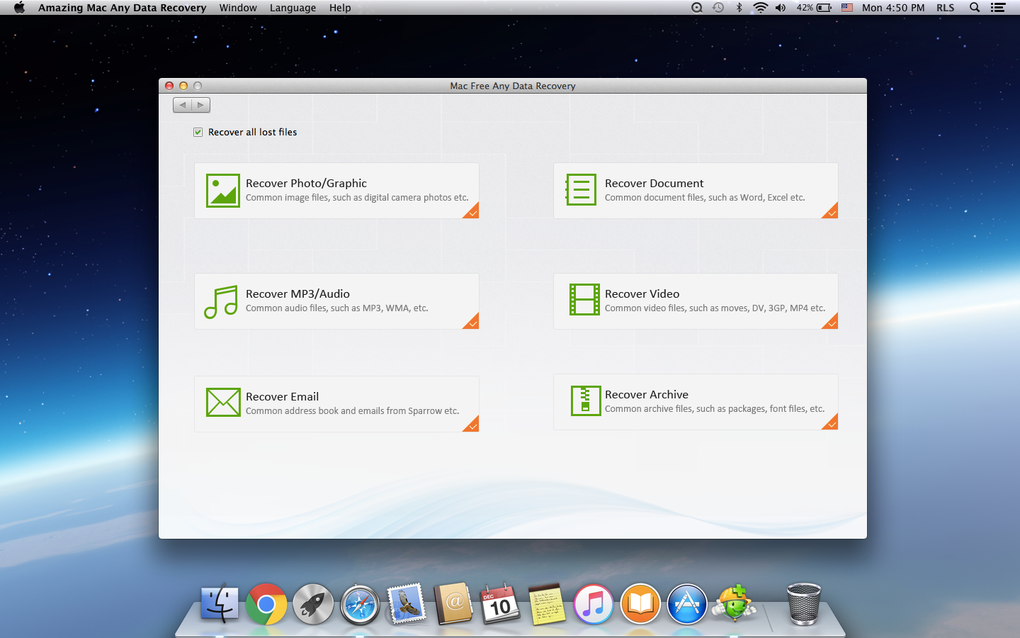
When a Mac suddenly crashes, a hard‑drive fails, or an important folder disappears, the first thought is always, “Can I get my data back?” Mac Free Any Data Recovery answers that question with a no‑cost, user‑friendly solution that works on macOS, external USB drives, SD cards, iPods, and even Android or iOS mobile devices when they are connected as mass‑storage. Designed for beginners, the interface relies on big, clearly labeled icons and plain‑English explanations for every option, so you don’t need to be a computer expert to launch a successful scan. The software automatically detects common file types—photos, music, videos, PDFs, emails, archives, and more—while also allowing you to target specific extensions if you know exactly what you’re after. One of its most valuable features is the built‑in preview window, which lets you verify the integrity of a file before you commit to recovering it, saving both time and disk space. Whether you’re dealing with accidental deletions, a corrupted partition, or a completely dead Mac, Mac Free Any Data Recovery provides a straightforward three‑step workflow: Scan → Preview → Recover. The free version offers both a quick scan for recently lost items and a deep scan that combs through every sector of the storage medium, delivering a comprehensive safety net for users facing a data crisis for the first time.
Key Features That Make Recovery Simple and Effective
- Three‑step recovery process: Scan, preview, and recover with a single click.
- Quick Scan & Deep Scan modes: Choose a fast scan for recent deletions or a thorough deep scan for severely damaged drives.
- Broad file‑type support: Photos, videos, music, documents, emails, archives, and more are automatically recognized.
- External device compatibility: Works with USB sticks, external HDD/SSD, SD cards, iPods, iPhone/iPad (when mounted as storage), and Android phones.
- File preview before recovery: Verify file integrity and avoid unnecessary restores.
- User‑friendly interface: Large icons, plain‑language tooltips, and a wizard‑style guide for beginners.
- Free version with no hidden fees: Full access to scanning and preview features without a trial limitation.
- Secure data handling: All recovered files are saved to a location you choose; no data is uploaded to the cloud.
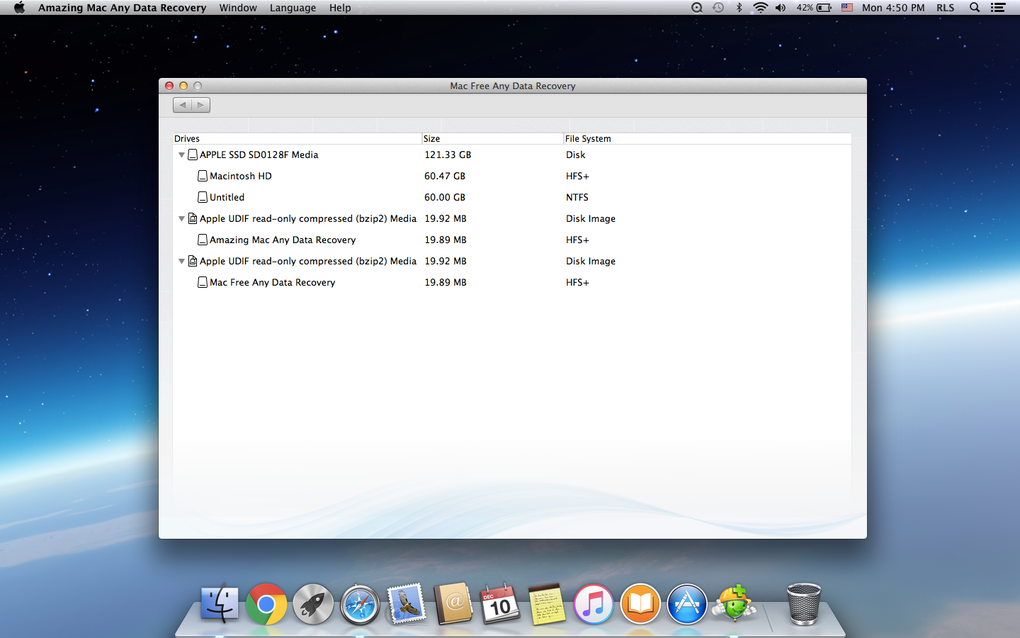
- Automatic drive detection: The program instantly lists all attached storage devices for quick selection.
- Low system impact: Optimized to run smoothly on older Macs without consuming excessive RAM.
Installation, Compatibility & How to Use Mac Free Any Data Recovery
Compatible with macOS 10.12 Sierra and later, including macOS Ventura, Monterey, and Big Sur.
Step‑by‑Step Installation
1. Download the installer from the official website. The file is a small .dmg package (approximately 30 MB), making it quick to download even on slower connections.
2. Open the .dmg and drag the Mac Free Any Data Recovery icon into your Applications folder.
3. macOS may warn you that the app is from an unidentified developer. Click “Open Anyway” in System Preferences → Security & Privacy to allow the program to run.
4. Launch the application. The first launch will prompt you to grant full‑disk access, which is required for the deep scan mode. Follow the on‑screen instructions to enable this permission.
Running a Scan
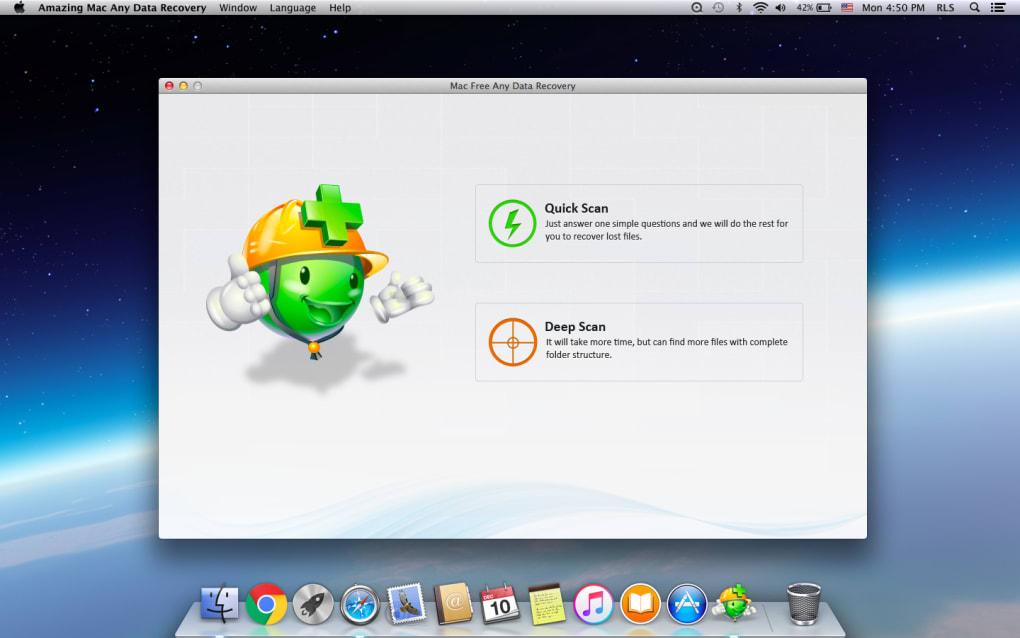
After launching, you’ll see the home screen with two primary buttons: Quick Scan and Deep Scan. Select the drive you want to examine from the automatically listed devices. If you’re recovering files from a USB stick or external SSD, simply plug it in and refresh the list. Click Quick Scan for recently deleted items; the process usually completes within minutes. For more serious corruption, choose Deep Scan, which may take longer but examines every sector for recoverable data.
Preview and Recovery
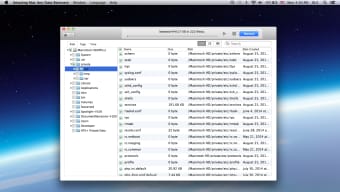
Once the scan finishes, the results appear in a sortable grid. Click any file to open a preview window—images show full resolution, documents display text, and audio files play a short clip. This preview step ensures you only recover the files you truly need. To recover, select the desired items, choose a safe destination folder (never the same drive you’re scanning), and click Recover. The software writes the recovered files to the chosen location, preserving the original folder structure when possible.
Troubleshooting Common Issues
If the program fails to detect a device, verify that the drive is mounted in Finder and that you have granted full‑disk access. For encrypted drives, you’ll need to unlock them first. In rare cases where macOS blocks the app, temporarily disable Gatekeeper via the terminal command sudo spctl --master-disable, run the scan, then re‑enable Gatekeeper for security.
Pros, Cons, Frequently Asked Questions & Final Verdict
Pros
- Completely free with no hidden trial periods.
- Intuitive interface suitable for beginners.
- Supports a wide range of storage devices, including mobile phones.
- File preview prevents unnecessary recovery.
- Low system resource usage, works on older Macs.
Cons
- No built‑in cloud backup; recovery is limited to local storage.
- Deep scan can be time‑consuming on very large drives.
- Advanced features such as RAID recovery are only available in paid versions.
Frequently Asked Questions
Is Mac Free Any Data Recovery truly free?
Yes, the entire feature set—including quick scan, deep scan, and file preview—is available at no cost. There is no time‑limited trial, and you won’t be prompted to purchase a license during normal use.
Can I recover data from a broken Mac that won’t boot?
If the internal drive can be removed and connected to another Mac via a USB enclosure or SATA‑to‑USB adapter, Mac Free Any Data Recovery can scan it just like any external drive. The software does not require a running operating system on the source computer.
Does the program support encrypted disks?
Encrypted volumes must be unlocked in macOS before scanning. Once the drive is unlocked and mounted, the software can access the file system and perform recovery.
How safe is the recovered data?
Mac Free Any Data Recovery never uploads your files to the internet. All scanning and recovery happen locally, and you choose the destination folder for recovered files, ensuring complete privacy.
What file types can be recovered?
The tool recognises a broad spectrum of formats, including JPEG, PNG, HEIC, MP4, MOV, MP3, WAV, PDF, DOCX, XLSX, PST, EML, ZIP, RAR, and many more. If a file type is not listed, you can still attempt recovery by searching for its extension manually.
Final Verdict & Call to Action
Mac Free Any Data Recovery Review
For Mac users who need a reliable, no‑cost solution to retrieve lost photos, documents, or media, this software delivers exactly what it promises. Its clean interface and powerful scanning engines rival many paid competitors, while the inclusion of mobile device support expands its usefulness beyond the desktop. Although the deep scan can be lengthy on massive drives and there are no built‑in cloud features, the overall value is outstanding for anyone facing a data emergency. If you’ve ever accidentally emptied the Trash or suffered a hard‑drive crash, give Mac Free Any Data Recovery a try—you have nothing to lose except your worries.
Ready to restore your precious files? Download Mac Free Any Data Recovery now and start the recovery process in just three simple steps. Protect your digital life today, free of cost and hassle.
Guides & Tutorials for Mac Free Any Data Recovery
How to install Mac Free Any Data Recovery
- Click the Preview / Download button above.
- Once redirected, accept the terms and click Install.
- Wait for the Mac Free Any Data Recovery download to finish on your device.
How to use Mac Free Any Data Recovery
This software is primarily used for its core features described above. Open the app after installation to explore its capabilities.
User Reviews for Mac Free Any Data Recovery 0
No reviews found





.webp)